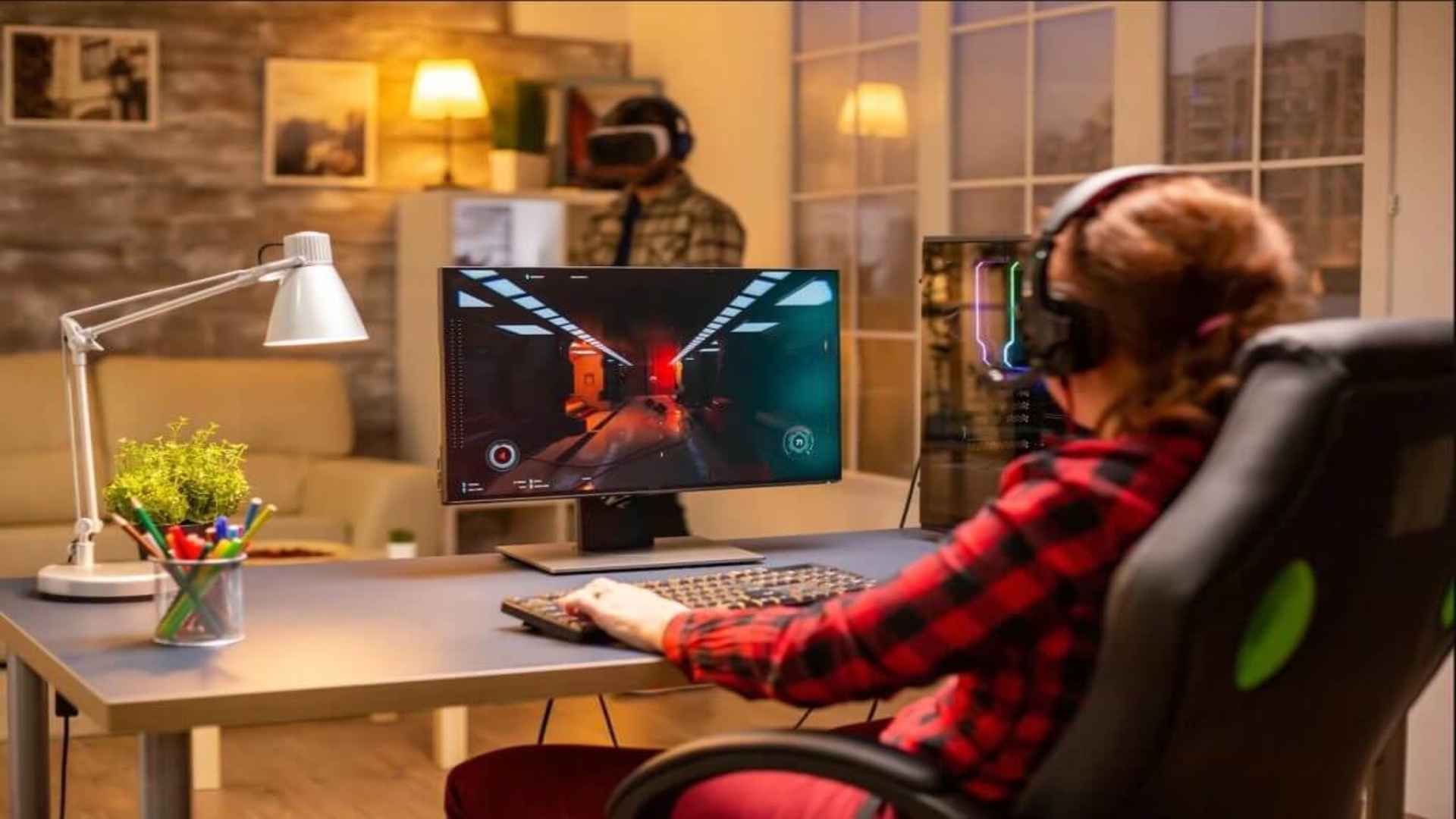
Setting up high-quality gaming audio on your PlayStation 5 can completely transform your immersive experience across every single title. Whether you are diving into narrative single-player adventures or competing in fast-paced multiplayer matches, connecting headphones properly ensures every acoustic detail is preserved clearly.
Connecting Wired Headphones via the DualSense Controller
The simplest way to connect headphones to your PlayStation 5 is by plugging a standard 3.5mm audio jack directly into the bottom of the DualSense wireless controller. This wired approach immediately routes all console sound to your headset while keeping your gaming setup free from cable clutter near the TV.
Once connected, navigating to the sound settings allows you to verify that the controller output is active. You can easily adjust chat balance and overall headphone volume directly through the quick control menu during gameplay sessions.
Using Wireless Headphones with USB Dongles
Many modern gaming headsets rely on dedicated 2.4GHz USB wireless dongles to provide ultra-low latency audio transmission. Inserting the wireless adapter into one of the USB ports on the front or back of the console allows the PS5 to recognize the audio device automatically.
For optimal wireless performance, ensure that the adapter is securely placed away from physical obstacles that might interfere with the signal. Most compatible USB headsets immediately sync with the console without requiring additional configuration steps.
Bluetooth Connectivity and Third-Party Adapters
Direct native Bluetooth audio connection is limited on the PlayStation 5 to prevent wireless signal interference with game controllers. Gamers who prefer using standard Bluetooth headphones will need a compatible USB Bluetooth transmitter plugged into the console.
Pairing your Bluetooth headset with a dedicated transmitter creates a seamless bridge for game sound delivery. Keep in mind that transmitter latency can vary, so choosing an adapter designed specifically for low-latency gaming yields the best results.
Optimizing PS5 Audio Settings for 3D Spatial Sound
After physically connecting your headset, taking time to configure Sony's Tempest 3D AudioTech enhances spatial awareness in supported titles. Accessing the audio menu under system settings allows you to enable 3D audio and tailor sound perception specifically to your listening profile.
Testing different acoustic height levels helps match sound directionality to your natural hearing preferences. Fine-tuning these options ensures realistic sound placement, allowing you to pinpoint footstep directions and environmental cues accurately during gameplay.